
When using Keil for STM32 development, updating code through STM32CubeMX often changes generated code to two-space indentation, making the style inconsistent. This tutorial explains how to format code in Keil with a single keyboard shortcut using clang-format.
Prerequisites
Required components
- Keil uVision IDE
- clang-format
Getting clang-format
Keil V6 users (armclang compiler): The tool is included in the installation directory:
<Keil installation path>\ARM\ARMCLANG\bin\clang-format.exeKeil V5 users (armcc compiler):
- Download the V6 compiler package,
Arm Compiler for Embedded 6.24 (for Keil® MDK), from the Arm website. - Extract it into the ARM folder under your Keil installation directory.
- Verify the final path:
<Keil installation path>\ARM\ARMCLANG\bin\clang-format.exeConfiguration
1. Add a custom tool
-
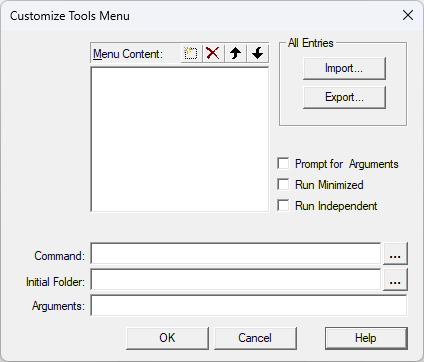
Open Keil → Tools → Customize Tools Menu…
-
Click Add to create a new tool.
-
Configure these fields:
-
Name: clang format
-
Path: the full path to clang-format.exe
-
Arguments:
-verbose -sort-includes -style=Microsoft -i !E -
!Erefers to the current file. -
-imodifies the file in place.
-
2. Set a keyboard shortcut
-
Open Edit → Configuration → Shortcut Keys.
-
Find the “Tools
format” entry. 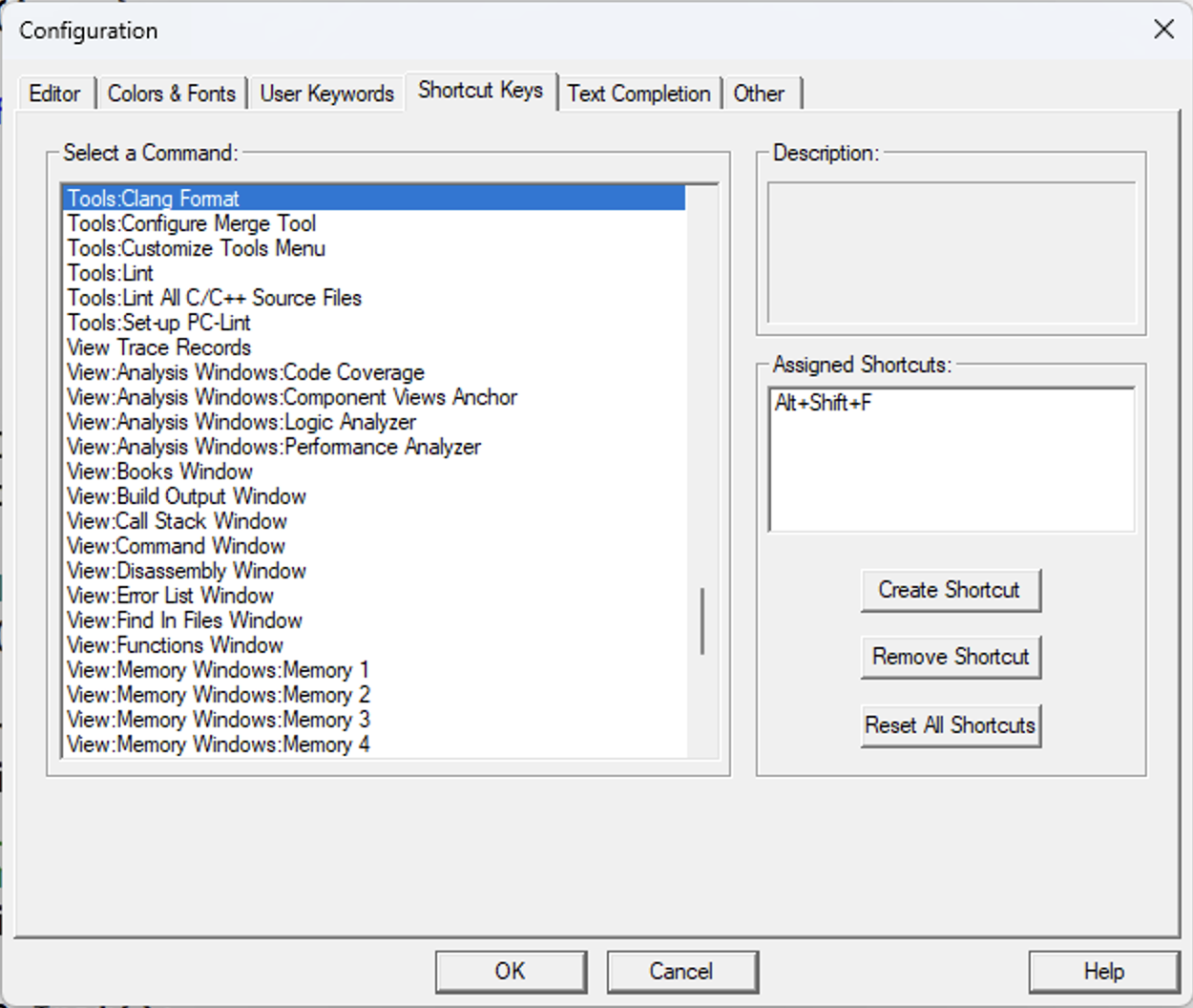
-
Choose your preferred shortcut. I use
Alt + Shift + F, the same shortcut as VSCode.
Usage tips
- Save the file before formatting, because the tool modifies the source file directly.
- Formatting applies the Microsoft style to:
- Code indentation
- #include ordering
- Code alignment and other formatting details
Advanced customization
clang-format supports extensive customization. Adjust the arguments to change:
- Indentation width
- Brace style
- Line wrapping and other rules
For specific formatting requirements, consult the clang-format documentation or relevant technical support.
Tip: This setup is especially useful if you frequently generate code with STM32CubeMX and want to keep its style consistent.